Mo starts on the web at /mo. From there you kick off the Slack app install in one click, approve what Slack shows you, then connect GitHub or GitLab so pull requests (or merge requests) get checked against decisions your team approved in Slack.
Works withSlack
→GitHub
/GitLab
1. Open /mo and choose “Start with Slack”
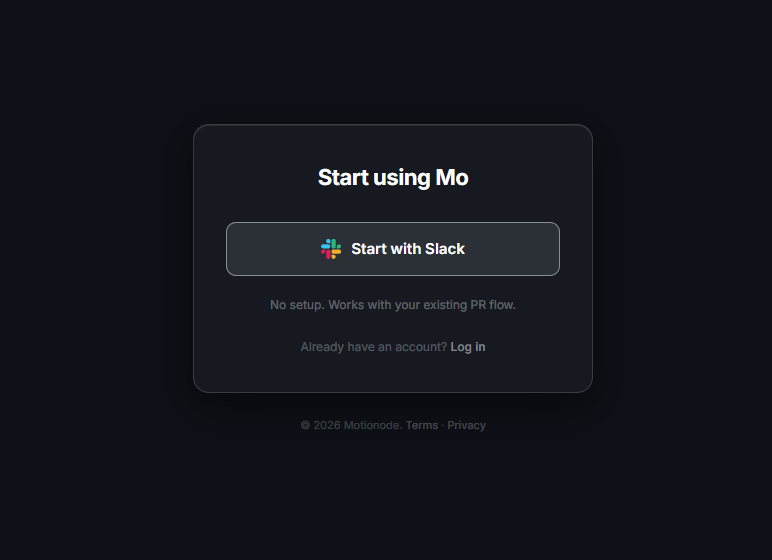
The Mo landing page is split like the product: on the left, a short explanation of what Mo does; on the right, a card titled Start using Mo. The main action is the outlined button with the Slack mark and the label Start with Slack. Under it, the product reminds you: No setup. Works with your existing PR flow. If you already have a Motionode account, use Log in at the bottom of the card instead.
When you click Start with Slack, the app creates your session in the background and sends your browser to Slack’s OAuth install URL for the Mo app. While that happens, the button shows a short Connecting… state so you know something is in progress.
Figure 1 — The /mo card: this is the install trigger, not Slack’s permission screen yet.
2. On Slack: review permissions and click Allow
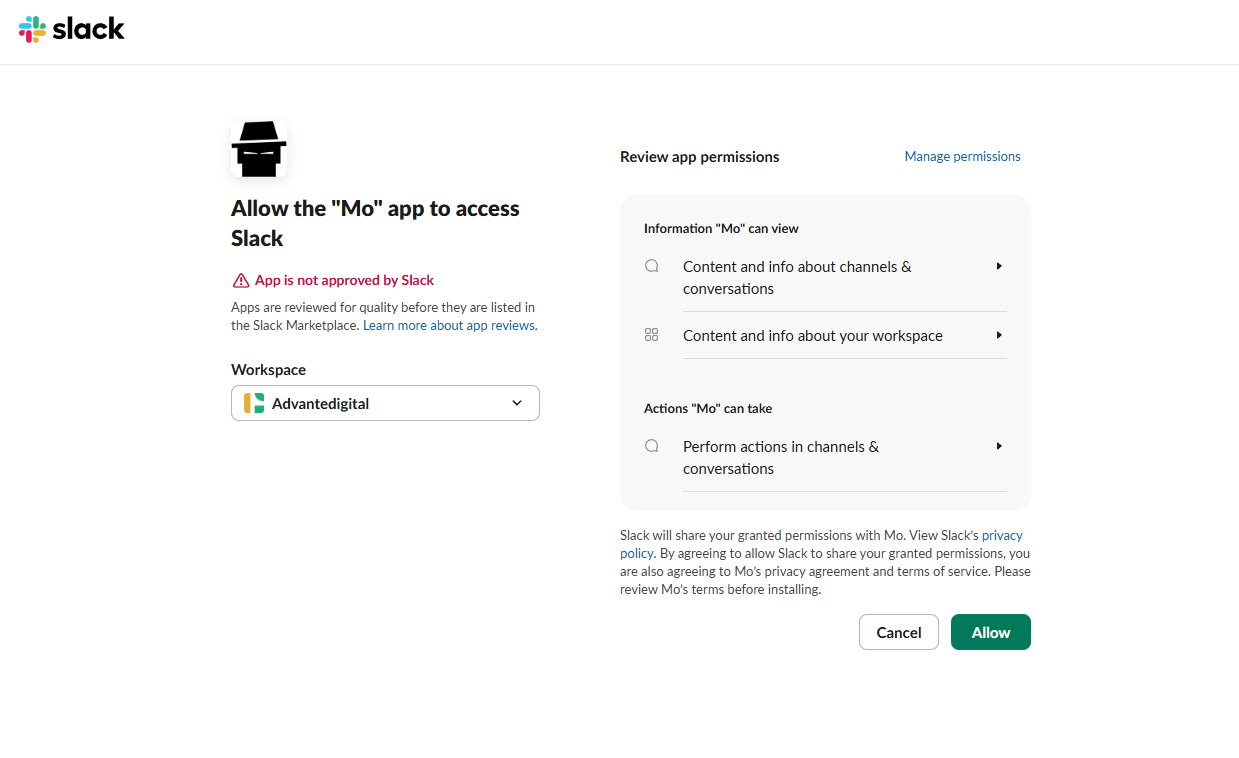
This step is authorize the app in your workspace, not the same as figure 1. Slack shows who is installing Mo, which workspace you are adding it to, and exactly which capabilities Mo is requesting (for example, reading channel and conversation content Mo needs to understand decisions, and performing actions such as responding in threads).
Choose the correct workspace from the dropdown if you use more than one, read the permission list, then click the green Allow button to finish. If you cancel, Mo stays uninstalled and you can try again from /mo.
If you see a notice that the app is not yet listed in the Slack Marketplace, that only means Slack has not run its public listing review yet. You can still allow the app for your workspace if your organization permits it.
Figure 2 — Slack’s allow screen: this is where you grant workspace access to Mo.
3. Repositories: connect GitHub or GitLab
After Slack is connected, you work in the Mo portal (the in-app experience after install). There you connect either GitHub or GitLab (one git provider per project flow), then select the repositories Mo should watch.
The Overview and Integrations areas guide you through Connect GitHub or Connect GitLab, token-based sign-in with the provider, and picking repos. Until at least one repo is selected, Mo cannot attach checks to real pull requests or merge requests. If your token expires later, the same Integrations area is where you reconnect. For a provider-specific walkthrough, see Connecting GitHub or Connecting GitLab.
4. Install summary and day-to-day use
Slack: Invite or add Mo to the channels where decisions happen. Team members discuss scope; when a decision is ready, someone mentions @mo to record an approval (as in the product’s examples).
Git: Open pull requests (GitHub) or merge requests (GitLab) as you already do. Mo runs checks against approved decisions and flags misalignment before merge, not as a replacement for your normal review process.
No repo changes required: The /mo landing copy calls out that you do not need code changes or config files in the repository for this flow.
If anything fails at step 1 (for example the button does not redirect), confirm you are on the live app URL, try again, or use Log in if you were meant to use an existing account.
 Slack
→
Slack
→
 GitHub
/
GitHub
/
 GitLab